You can now schedule jobs in Calendar
Pick a day, add your client, and start paperwork from the saved job. Follow a heat pump service call from Calendar to an HVAC work order.
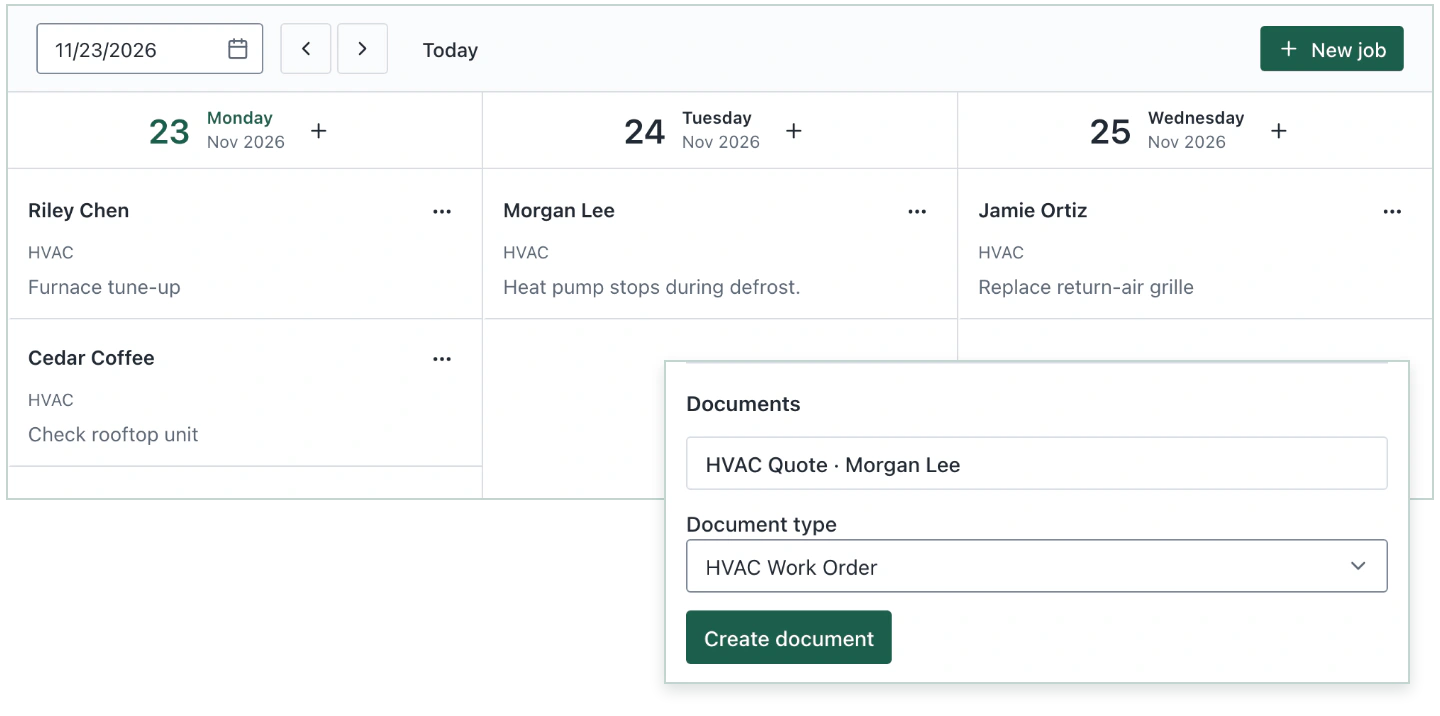
Calendar is now in your Documentorium account. When a customer calls, you can pick a day, save their name, and come back to the job when you’re ready to write up the visit. The HVAC work order template has fields for the client and equipment. Creating the work order from the saved visit fills in the details you recorded.
Put a visit on the calendar
Say Morgan Lee calls because the heat pump stops during defrost. Open Calendar, select New job, choose Tuesday, enter Morgan’s name, and select Save. The date and name are enough to schedule the visit.
Tuesday’s visits appear together. You can put them in the order you plan to make them. If Morgan asks for Wednesday instead, open the job and change the date. A note like “Call before parking in the driveway” stays with the job in Calendar.
Start the paperwork from Morgan’s job
- Reopen Morgan’s visit in Calendar. Under Trade, select HVAC to see the HVAC forms. Enter the equipment make and model if you have them.
- Under Documents, choose HVAC Work Order and select Save and create document. If the trade was already saved and you haven’t changed the visit, the button reads Create document. The draft opens with Morgan’s name and any equipment details you entered. Our guide to writing up a diagnostic visit walks through what to record when the cause is still unknown.
- When Morgan wants a price for the repair, reopen the job and choose HVAC Quote. After the work, you can start an HVAC Service Report there too. The job lists the documents you’ve created from it, so you can find the quote on your next visit.
The HVAC catalog includes the quote for proposed repairs, the service report for completed work, and an inspection report for checkups. Our work order and service report example follows one HVAC call from dispatch to the final invoice. If you keep several documents for each customer visit, see our guide to organizing paperwork by job.
To try it with your own next visit, create an account and open Calendar. The Calendar help explains how to move a visit and find its documents.
Common questions
What if I change the job after creating a document?
Each draft keeps the details it had when you created it. If you correct a model number in Calendar, open the existing work order to make the same correction there. A new work order started from the job will use the corrected number.
Which notes will the customer see?
Private planning notes stay in Calendar. Use the fields in the document for the information you want the customer to receive.
Is Calendar included in the free trial?
Yes. You can schedule jobs and start documents during your free trial and with the annual plan.