Receipt
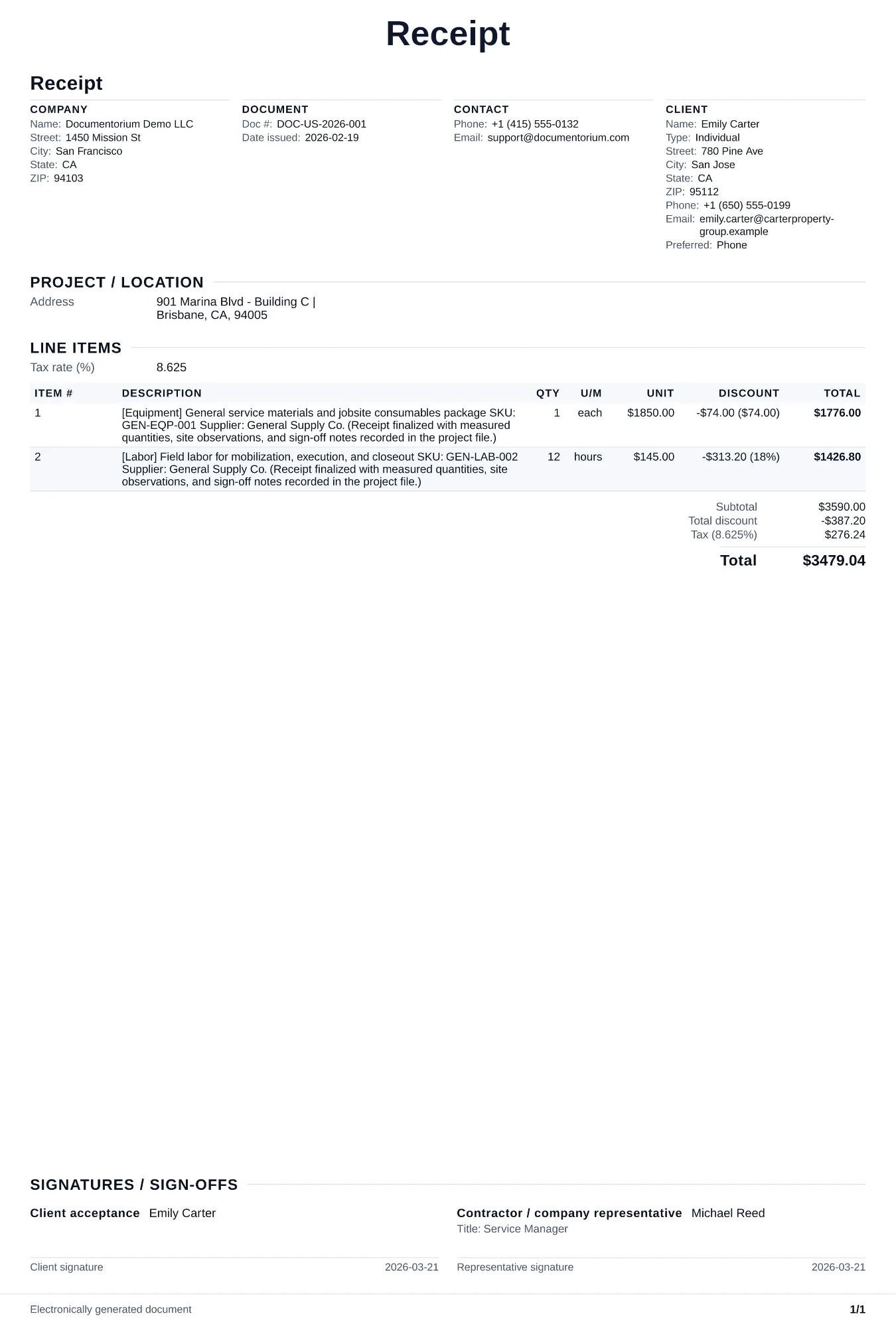
Confirm payment received with line-item detail, payment terms, and signed acknowledgment for job closeout records.. Create this document online — fill in…
Complete and download the PDF before creating an account
When to use and what to include
Record payment details online, then generate a receipt PDF for immediate confirmation. Use this immediately after receiving a payment from the client, whether it is a deposit, progress payment, or final payment, to confirm the amount received and update the balance owed.
What to include
- Receipt number, date of payment, and reference to the invoice number or contract number the payment applies to.
- Amount received, payment method (cash, check number, credit card last four digits, or bank transfer reference), and the name of the person who made the payment.
- Running account summary: total contract amount, total payments received to date including this payment, and remaining balance due.
- Notation of what the payment covers (deposit, milestone 2 of 4, final payment) so both parties can track progress against the payment schedule.
- Your company name, address, phone number, and a thank-you or next-steps note (e.g., next payment due date or scheduled start date if this was a deposit).
Common questions
- Can I save this Receipt format for future transactions?
- Yes. With an account, save the receipt in your history and reuse relevant customer and payment details as a starting point for a future receipt.
- How do a receipt and a paid invoice differ?
- A receipt confirms the payment received. A paid invoice is the original billing document with its paid status recorded; together they create a complete record.
- What should I review before using the completed Receipt?
- Review the parties, job or property details, dates, amounts, notes, and signatures entered in the Receipt. Confirm that the PDF matches the underlying job or agreement and any legal, tax, technical, filing, or notice requirements that apply to the location.